
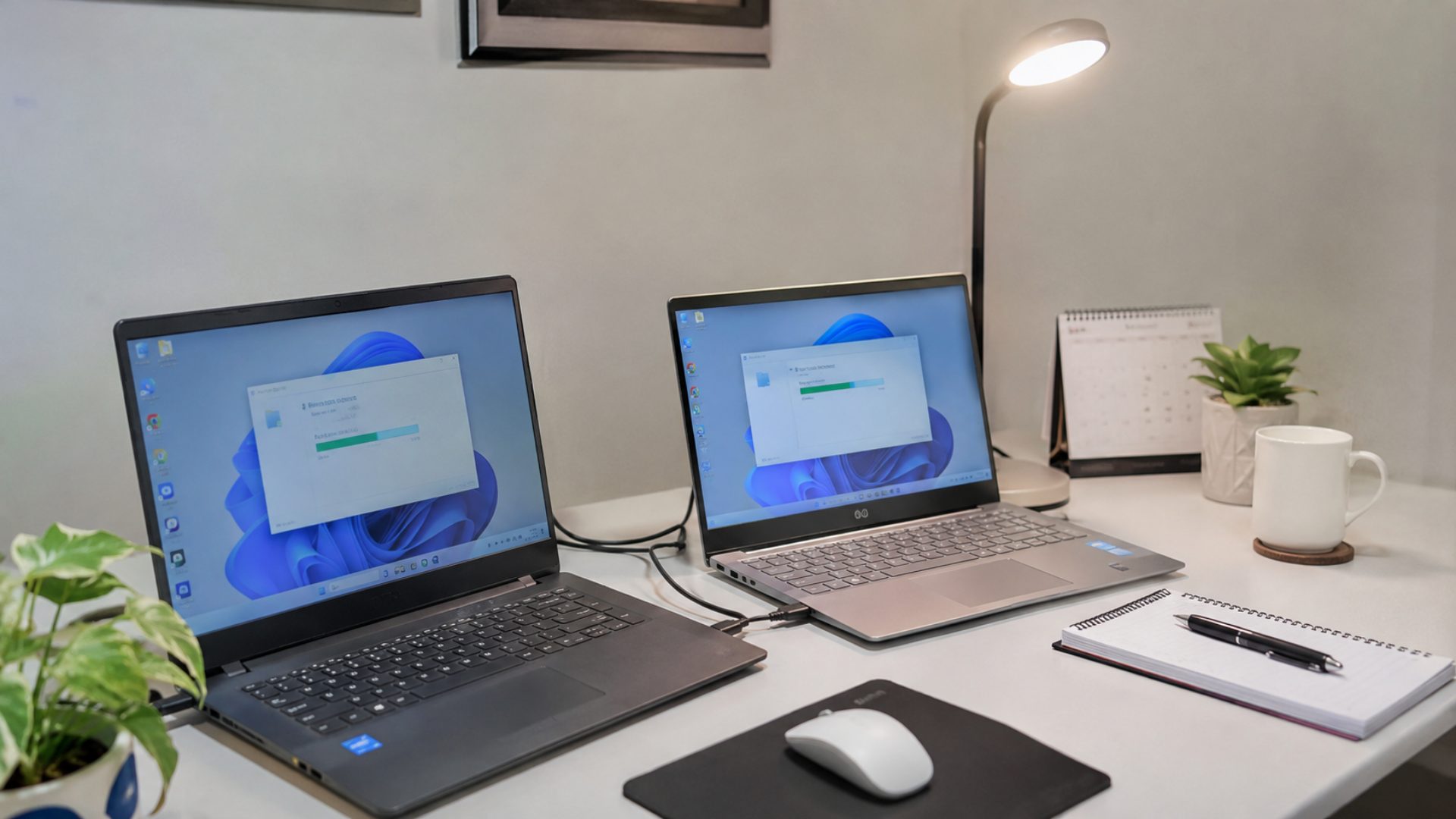
Replacing an old PC with a new computer can make daily work faster, improve system performance, and provide better security. However, moving to a different computer involves more than copying personal files. Important documents, installed applications, system settings, and software licenses may all need attention before the old device is retired. Without proper preparation, users may lose access to important information or spend unnecessary time reinstalling programs. Understanding the PC replacement and software transfer process helps make the transition smoother and reduces the risk of unexpected problems during setup.
A successful computer replacement starts with knowing what needs to be moved and which applications require fresh installation. Some information can be transferred through cloud storage or an external drive, while other software may require account verification, license activation, or a new installation. Taking time to review these requirements before switching devices can prevent common mistakes. With a clear plan, users can move to a new PC while keeping their essential files, familiar applications, and important settings within reach.
Preparing Your Old PC Before Replacing It
Before starting a PC replacement, check the condition and contents of your existing computer. Review important folders, including Documents, Desktop, Downloads, Pictures, and Videos, to identify files that must be preserved. Also check for work related documents stored in less obvious locations, such as custom application folders or local project directories. Creating a complete inventory helps prevent important information from being overlooked. It is also a good time to remove unnecessary files and organize documents, making the transfer process easier and reducing the amount of storage space required on the new computer.
Creating a reliable backup is another important preparation step. You can use an external hard drive, USB storage device, or cloud storage service to keep copies of essential files. Services such as OneDrive, Google Drive, and Dropbox allow users to access supported files from different devices after signing in. However, cloud synchronization should not automatically be treated as a complete backup because deleted or changed files may also synchronize. For additional protection, keep a separate copy of important information and verify that the backup files can be opened before moving forward.
Transferring Software and Applications to a New PC
One important thing to understand about software transfer is that installed applications cannot always be moved by simply copying their folders. Many Windows programs depend on registry entries, system components, configuration files, and other installation details. Copying an application folder from an old PC to a new one may cause errors or prevent the software from opening correctly. In most situations, downloading the installer from the official developer website and installing the application again is the safest approach. This also helps ensure that the new computer receives supported software versions and necessary updates.
Software licenses should also be checked before reinstalling applications. Some programs use product keys, while others require users to sign in with an account connected to an active subscription or license. Certain licenses may limit the number of devices that can use the software simultaneously. If the old computer is being retired, check whether the application needs to be deactivated before activation on the replacement PC. Keep product keys, purchase confirmations, account details, and installation files in a secure location. These records can make software reactivation easier and help avoid unnecessary licensing issues.
Setting Up and Checking Your Replacement PC
Once your new computer is ready, begin by completing the initial Windows setup. Connect to a reliable internet connection, sign in with the appropriate Microsoft account if needed, and install available Windows updates. Updates can include security improvements, bug fixes, and hardware compatibility changes. You should also check Device Manager to identify missing drivers or devices that are not working correctly. Most modern computers can obtain many drivers through Windows Update, while manufacturer websites may provide additional drivers for specific graphics cards, network adapters, printers, and other hardware.
After updating the system, install the applications you regularly use and restore your backed up files. Start with essential programs such as web browsers, office applications, communication tools, and specialized work software. Sign in to the relevant accounts to restore supported settings, bookmarks, and synchronized information. For email applications, check whether messages are stored on the server or only on the old computer. Local Outlook data files, for example, may need to be transferred separately. Review each application after installation to confirm that its files, preferences, and required features are available.
Before permanently retiring your old PC, perform a final inspection of the replacement computer. Open important documents, test installed applications, check internet connectivity, and confirm that printers, external drives, and other connected devices work properly. Make sure essential files are accessible and that software licenses are activated where required. Keep the old computer available until you are confident that the transfer is complete. When everything has been verified, securely erase the old device before selling, donating, or recycling it. A proper data removal process helps protect personal information, saved passwords, and confidential work documents from unauthorized access.