
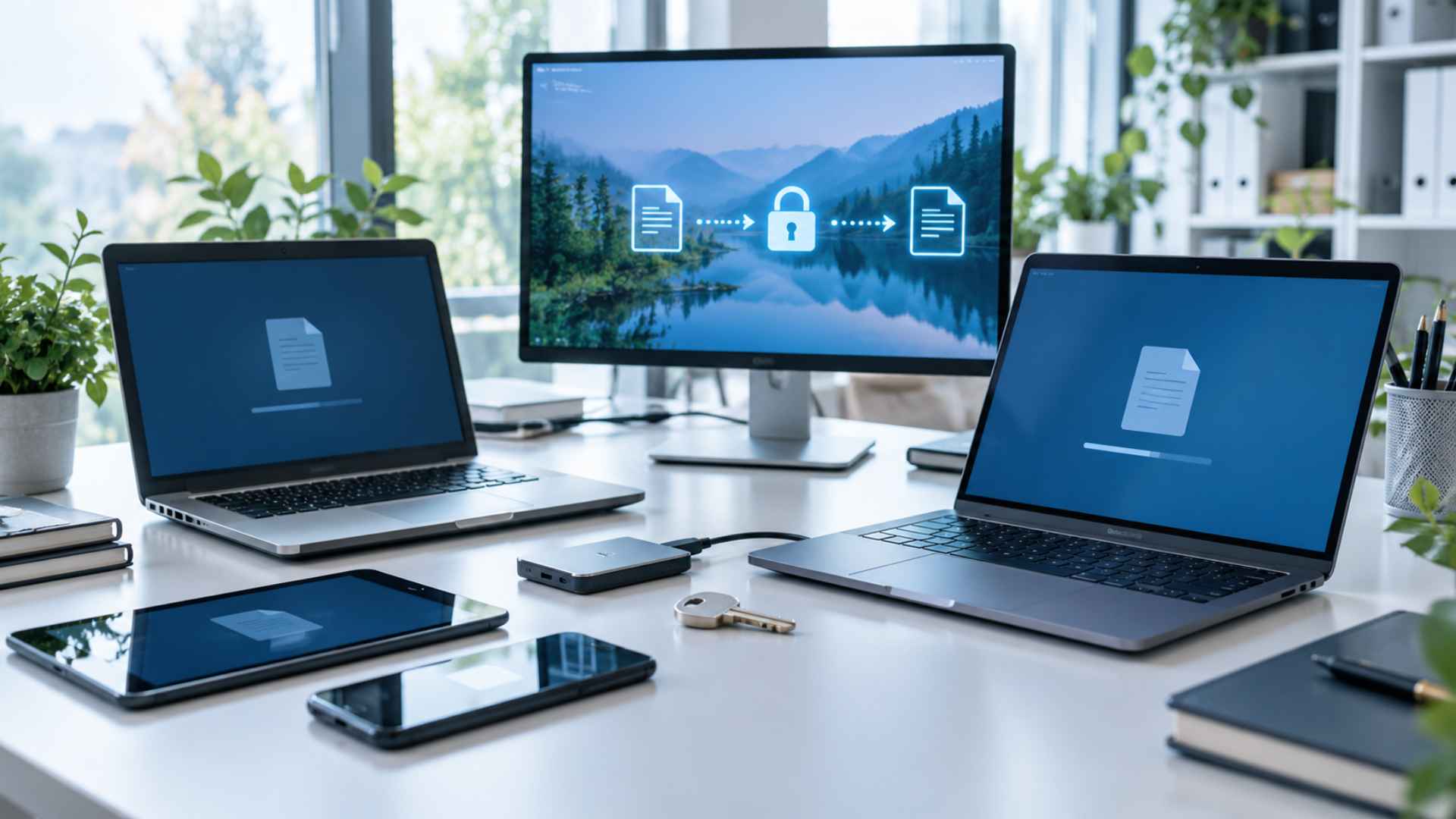
Changing to a new computer, upgrading a laptop, or switching to a different operating system can make everyday digital tasks feel more complicated than expected. While transferring documents, photos, and applications is usually part of the process, software licensing deserves equal attention. Many users focus on moving their files without checking whether their paid applications can be installed and activated on another device. As a result, they may encounter unexpected activation errors, lose access to essential tools, or spend money on software they already own. Preparing a clear transfer plan helps prevent these problems and makes the transition more efficient.
For individuals and businesses, maintaining software access is an important part of protecting digital investments. A valid license represents permission to use a particular application under specific conditions, and those conditions can vary depending on the provider, subscription plan, and number of authorized devices. Keeping software licenses safe when changing devices requires more than saving a product key or remembering an account password. It involves understanding license terms, securing account information, preparing the old device, and verifying activation on the replacement computer. With the right approach, users can reduce interruptions, avoid unnecessary expenses, and preserve access to the applications they depend on every day.
Understand Software License Terms Before Switching Devices
Before moving applications to a new computer, review the licensing agreement associated with each program. Some software licenses are assigned to an individual user, while others are tied to a specific device, operating system, or hardware configuration. Subscription-based applications may allow installation on several devices but restrict simultaneous use. Perpetual licenses, meanwhile, can have different transfer conditions depending on the vendor and product edition. Understanding these differences helps determine whether an existing license can be transferred directly, deactivated first, or replaced with another license. Checking official documentation is more reliable than assuming that every purchased application follows the same rules.
It is also important to distinguish between owning software and having permission to use it under a particular license. Purchasing an application does not always mean that it can be installed on unlimited computers or transferred without restrictions. Some providers require users to sign out, deactivate the previous installation, or remove the application before activating it elsewhere. Others manage access through an online account, making the transfer process relatively straightforward. Before making changes, record the software name, edition, license type, renewal date, and applicable device limit. This information creates a useful reference when reinstalling applications and helps prevent confusion if an activation request fails.
Prepare Your Existing Device for a Secure Software Transfer
Preparation should begin while the original computer is still accessible and functioning properly. Create a list of installed applications, identify the licenses that require manual activation, and confirm that the associated accounts can be accessed. Save installation files when permitted, along with legitimate product keys, purchase receipts, and relevant order confirmations. Keep these records in an encrypted password manager or another secure storage location rather than leaving them in an unprotected text document. If the software relies on cloud synchronization, verify that important settings and project files are backed up. A complete inventory makes it easier to identify missing applications and restore essential tools after the hardware change.
Protect License Keys and Account Credentials During Migration
Software license keys and account credentials should receive the same level of protection as other sensitive digital information. Avoid sending activation codes through unsecured messages or storing them in publicly accessible cloud folders. A reputable password manager can help organize credentials, generate strong passwords, and reduce the risk of accidental exposure. Enabling multifactor authentication adds another layer of protection, particularly for accounts that control expensive applications or business subscriptions. Users should also verify that recovery email addresses and authentication methods remain accessible after switching devices. These precautions reduce the likelihood of losing access to a legitimate license because of compromised credentials, forgotten passwords, or outdated recovery information.
Store Product Keys in a Reliable and Secure Location
A product key may be required during installation, troubleshooting, or account recovery, so its location should be documented before the old computer is retired. Keep the key alongside the purchase receipt and software details in a secure digital vault, using clear labels that identify the correct application and version. For software managed entirely through an online account, retain the account information and proof of purchase instead of relying on an unnecessary standalone key. Never publish license codes on forums or share them with unfamiliar support contacts. Organized records make legitimate activation easier while reducing the chance that sensitive information will be misplaced or exposed.
Deactivate Old Installations Before Activating New Ones
Some applications limit the number of devices that can use the same license, making deactivation an important step in the transfer process. When required by the vendor, sign out of the application or use its license management settings to release the old device before installing the software on the replacement computer. If the original machine is unavailable, check whether the provider offers a device management dashboard or an official activation reset procedure. Avoid repeatedly entering the same key when an activation error appears, because the problem may involve a device limit rather than an incorrect code. Following the authorized process helps preserve license validity and prevents avoidable interruptions.
Verify Software Activation on the Replacement Device
After installation, open each application and confirm that its license status is active and associated with the correct account. Check whether premium features, saved preferences, cloud synchronization, and essential integrations work as expected. Some programs require a restart or an additional sign-in before activation is fully recognized. If a license is rejected, review the displayed error message and compare it with the provider’s troubleshooting guidance. Keep screenshots or support reference numbers when contacting customer service, but avoid including complete product keys in those records unless an authorized support channel specifically requires them. Verification ensures that the transfer is complete before the previous device is erased, sold, or recycled.
Avoid Common Software Licensing Problems When Changing Hardware
One common mistake is wiping or disposing of an old computer before confirming that important licenses can be transferred. This can create unnecessary difficulties when a program requires manual deactivation or access to a previous installation. Another frequent problem is confusing a software subscription with a perpetual license, particularly when different editions have similar names. Users should also be cautious of unofficial activation tools, suspicious license recovery websites, and unusually cheap product keys from unverified sellers. Such offers may involve invalid, misused, or improperly distributed licenses. Relying on official vendor websites and authorized resellers provides a safer way to obtain installation files, manage activations, and resolve licensing questions.
Businesses should take additional precautions when employees receive replacement computers or move between workstations. A centralized license inventory helps administrators track assigned devices, subscription renewals, activation limits, and software ownership. Before removing an old machine from service, the IT team should confirm that business applications have been deactivated where necessary and that essential data has been transferred according to company policy. Access permissions should also be reviewed so that former employees or retired devices no longer retain unnecessary account access. Regular audits can reveal unused licenses, duplicate subscriptions, and potential compliance issues before they become expensive problems. By combining secure credential management, careful preparation, and proper activation procedures, individuals and organizations can keep software licenses safe when changing devices while maintaining productivity and protecting their digital investments.